

DLSS Frame Generation is an NVIDIA feature that uses AI to insert new frames between traditionally rendered ones, raising displayed frame rates without extra CPU work. Those synthetic frames boost visual smoothness instead of input responsiveness. It helps PC gaming most on high-refresh-rate monitors once your game already runs around 50 to 60 FPS.
ContentsToggle
How does DLSS Frame Generation work?
Standard DLSS Super Resolution is a form of AI temporal upscaling that renders each frame at a lower internal resolution and reconstructs pixels up to your screen size. DLSS Frame Generation takes a different approach by creating whole intermediate images between two traditionally rendered frames.
To predict what belongs between frames, the AI reads sequential color frames alongside game-engine motion vectors, depth data, and optical flow tracking for fast-moving particles, reflections, and shadows. According to the NVIDIA Streamline documentation, supported games also supply separate HUD-less and UI color buffers so health bars, crosshairs, and text stay intact instead of warping during motion.
Because the graphics card builds these extra frames without asking the game engine to simulate another physics or logic tick, displayed FPS can climb even when your processor is maxed out. That makes Frame Generation unusually effective in crowded open-world cities and simulation-heavy games where lowering graphics settings barely moves the frame counter.
NVIDIA has reworked the underlying hardware and AI pipeline twice since introducing the feature in 2022. In 2025, the NVIDIA DLSS 4 architecture replaced the dedicated Optical Flow Accelerator with an AI optical flow model that runs 40% faster and uses 30% less VRAM on both RTX 40 and RTX 50 Series GPUs. In NVIDIA’s 2025 testing of Warhammer 40,000: Darktide at 4K maximum settings on an RTX 5090, that model swap alone lifted frame rates by 10% and cut VRAM usage by 400 MB.
On RTX 50 Series cards, DLSS 4 also added Multi Frame Generation (3X and 4X modes) using 5th-generation Tensor Cores with up to 2.5X AI throughput and hardware Flip Metering inside the display engine to pace multiple generated frames evenly. In 2026, NVIDIA’s DLSS 4.5 release notes expanded RTX 50 Series support to a 6X mode (up to five generated frames per rendered frame in supported titles) plus Dynamic Multi Frame Generation, which shifts the multiplier up or down in real time to match your monitor’s refresh rate.
| DLSS version | Release year | Official GPU support | Max generated frames per rendered frame | Key technical change |
|---|---|---|---|---|
| DLSS 3 Frame Generation | 2022 | GeForce RTX 40 Series | 1 (2X mode) | Hardware Optical Flow Accelerator with CPU-based frame pacing |
| DLSS 4 Multi Frame Generation | 2025 | RTX 40 Series (2X); RTX 50 Series (up to 4X) | 3 (4X mode on RTX 50 Series) | AI optical flow model (40% faster, 30% less VRAM) and Blackwell hardware Flip Metering |
| DLSS 4.5 Dynamic Multi Frame Generation | 2026 | GeForce RTX 50 Series | 5 (6X mode in supported titles) | Real-time refresh-rate multiplier scaling and an updated UI-aware model |
How much latency and visual risk does it add?
Generating a frame between two real frames requires the graphics pipeline to hold back a completed frame briefly so the AI has both a “before” and an “after” image. During that brief buffer, your mouse movements and keystrokes only register on traditionally rendered frames, so Frame Generation always adds system latency compared to leaving it off at the same base frame rate.
NVIDIA automatically pairs Frame Generation with NVIDIA Reflex to trim the render queue and claw back part of that delay, and NVIDIA Research introduced Reflex Frame Warp with DLSS 4 to tighten responsiveness further. Even with Reflex active, a game running at 60 FPS natively and doubled to 120 FPS looks like 120 FPS in motion while feeling closer to 60 FPS on your mouse or controller.
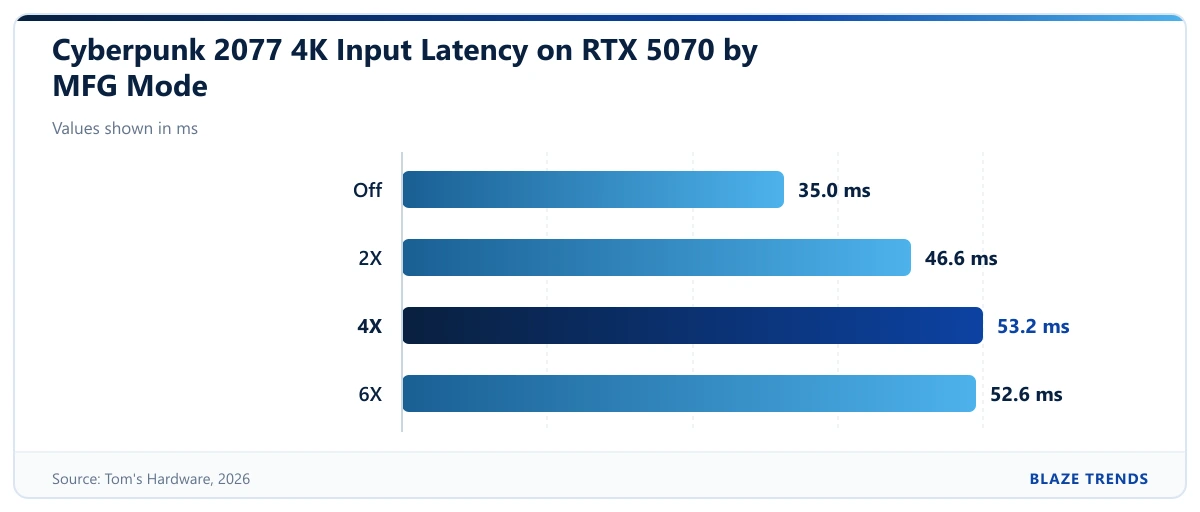
Independent Tom’s Hardware testing in March 2026 measured that trade-off in Cyberpunk 2077 at a 4K target with path tracing and DLSS Ultra Performance on an RTX 5070. Input latency rose from 35.0 ms with Multi Frame Generation off to 46.6 ms at 2X, 53.2 ms at 4X, and 52.6 ms at 6X.
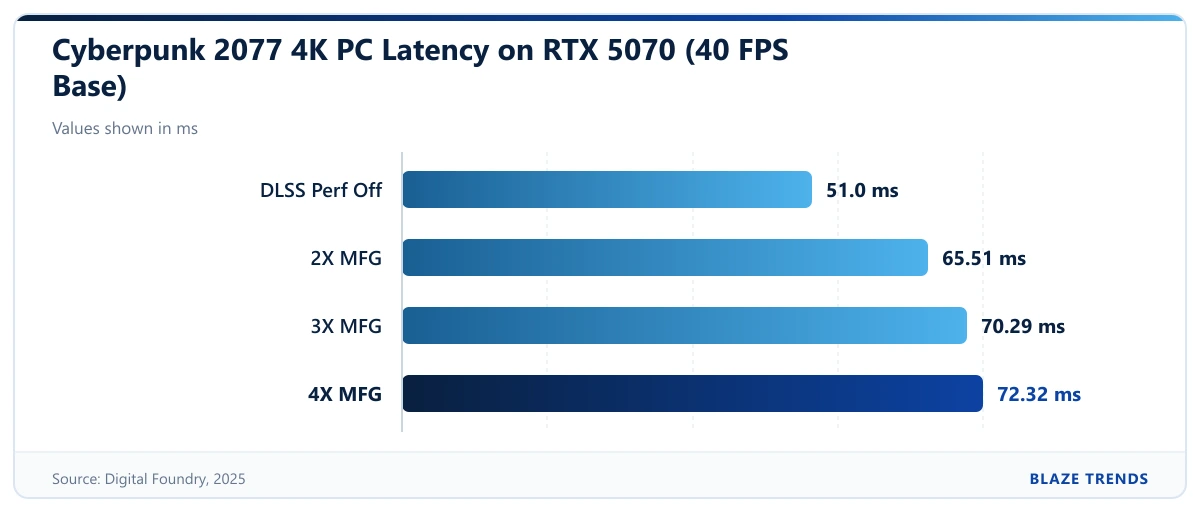
When your base frame rate starts too low, that extra latency stacks on top of an already sluggish baseline. In March 2025 Digital Foundry benchmarks of Cyberpunk 2077 at 4K RT Overdrive with DLSS Performance, an RTX 5070 averaged 40 FPS at 51 ms of PC latency without Frame Generation, climbing to 65.51 ms at 2X, 70.29 ms at 3X, and 72.32 ms at 4X.
Engine design also affects how heavy a game feels with synthetic frames. In the same 2025 Digital Foundry review, Alan Wake’s naturally higher engine latency pushed the RTX 5070 to between 134.12 ms and 146.24 ms with Multi Frame Generation enabled, making camera movement feel noticeably delayed.
Image quality carries a smaller secondary trade-off. Fast camera pans, fine transparent effects, or games that fail to separate UI layers cleanly can show brief ghosting or HUD shimmer, and Tom’s Hardware noted in 2026 that artifacts stay minor at 4X while becoming slightly more noticeable at 5X and 6X multipliers.
When does DLSS Frame Generation improve PC gaming?
Think of Frame Generation as a visual smoothness multiplier for games that already play well, rather than a rescue tool for struggling hardware. Independent reviewers at TechSpot and Rock Paper Shotgun in 2025 consistently point to roughly 50 to 60 FPS as the practical floor before switching it on.
Turning DLSS Frame Generation on usually improves your experience in these situations:
- Single-player, story-driven, or visually dense games with ray tracing or path tracing enabled where you already reach 50 to 60 FPS using DLSS Super Resolution.
- High-refresh-rate setups (120 Hz, 144 Hz, 240 Hz, or faster) where extra generated frames visibly sharpen motion clarity during camera pans.
- CPU-limited games where your graphics card has spare headroom and lowering internal resolution does not increase frame rates.
- Controller-friendly third-person games, where a 10 to 20 ms latency increase is far harder to notice than on a high-sensitivity mouse.
Leave Frame Generation off in these cases:
- Games running around 30 FPS or below before Frame Generation, where sluggish input response and wider gaps between real frames produce distracting artifacts.
- Fast-paced competitive multiplayer shooters where every millisecond of input responsiveness beats extra motion smoothness.
- Graphics cards sitting near their VRAM ceiling, such as 8 GB GPUs running high-resolution textures, where the extra frame buffers can trigger stuttering unless you lower texture settings first.
How to enable and verify DLSS Frame Generation
Before changing game menus, confirm your system meets NVIDIA’s official requirements as of 2026. You need a GeForce RTX 40 Series GPU for 2X Frame Generation or an RTX 50 Series GPU for Multi Frame Generation (3X, 4X, 6X, and Dynamic mode), Windows 10 version 2004 (build 19041) or Windows 11, and GeForce Game Ready Driver 595.97 WHQL or newer for DLSS 4.5 features.
- Open Windows Settings, go to System, then Display, then Graphics, and open Change default graphics settings (labeled Advanced graphics settings on newer Windows 11 builds).
- Switch Hardware-accelerated GPU scheduling to On, then restart your PC so the setting takes effect.
- Launch your game, open its graphics settings, and turn on DLSS Super Resolution (or lower heavy settings) until your baseline frame rate stays steady around 50 to 60 FPS.
- Enable DLSS Frame Generation in the same graphics menu and pick a multiplier if the game offers 2X, 3X, 4X, or Dynamic mode; NVIDIA Reflex turns on automatically alongside it.
- To force the newer AI model or override multipliers in supported games, open the NVIDIA app, navigate to Graphics and choose Global Settings or Program Settings, scroll to Driver Settings, set DLSS Override – Model Presets to Latest, and on RTX 50 Series cards configure DLSS Override – Frame Generation (NVIDIA recommends 3X for displays up to 180 Hz, 4X for 240 Hz and above, or Dynamic Multi Frame Generation where supported).
- Confirm your settings are active in-game by pressing Alt+Z to open the NVIDIA app overlay, selecting Statistics, then Statistics View, then DLSS, and pressing Alt+R while playing to view live override status.
If the Frame Generation toggle is grayed out inside a game, double-check that Hardware-accelerated GPU scheduling is enabled, reboot Windows, and verify your GPU is an RTX 40 or 50 Series model. If 6X or Dynamic Multi Frame Generation is missing in the NVIDIA app, update both your GeForce driver to 595.97 WHQL or newer and the NVIDIA app itself, and if you notice sudden hitching after turning it on, drop texture quality one notch to free VRAM or step down to a lower multiplier.
Frequently asked questions
Does DLSS Frame Generation work on RTX 20 or RTX 30 Series cards?
Officially, no. NVIDIA restricts 2X DLSS Frame Generation to GeForce RTX 40 Series and newer GPUs, and reserves Multi Frame Generation and Dynamic Multi Frame Generation for RTX 50 Series cards, while RTX 20 and 30 Series owners still get DLSS Super Resolution, DLAA, and Ray Reconstruction. Unofficial community mods have ported Multi Frame Generation to older RTX cards in 2026, though they lack Blackwell’s hardware Flip Metering and official driver support.
Can you run DLSS Frame Generation without DLSS upscaling?
Yes. Frame Generation runs independently of DLSS Super Resolution, so supported games let you combine it with native resolution, NVIDIA DLAA (Deep Learning Anti-Aliasing), AMD FSR, or Intel XeSS. Pairing it with native resolution or DLAA works well if your GPU already stays above 60 FPS without upscaling.
Why doesn’t 4X or 6X Frame Generation multiply my FPS by four or six?
The Frame Generation AI models consume GPU compute time on every cycle, which slightly lowers the underlying base frame rate before the multiplier is applied. In Tom’s Hardware’s March 2026 4K DLSS Performance scaling test, a 60.0 FPS baseline rose to 103.1 FPS at 2X, 178.8 FPS at 4X, and 247.7 FPS at 6X rather than hitting strict mathematical multiples.