
Ever felt like installing new software on your computer was a chore? You know, hunting down files or wrestling with cryptic commands. For macOS and Linux users, there’s a neat trick that makes life a lot simpler. It’s called Homebrew, and it’s been quietly making waves for over a decade.
Picture Homebrew as your personal software assistant. It’s an open-source tool, available to everyone. It helps you add programs your computer doesn’t naturally offer. Think of it as a secret back door to a massive software library. This makes your system more flexible and helps you get things done faster. Use it for work, school, or just for fun.
Unlocking Your Terminal’s Potential
This invisible store opens right in your computer’s terminal window. Homebrew was created in 2009. You just type a simple command, and Homebrew takes care of the rest. You can grab applications, important code libraries, or handy utilities. The main command you’ll use for Homebrew is brew.
Want to install a command-line program? Just type:
brew install package-nameNeed a full graphical application, like a web browser? Add a special flag:
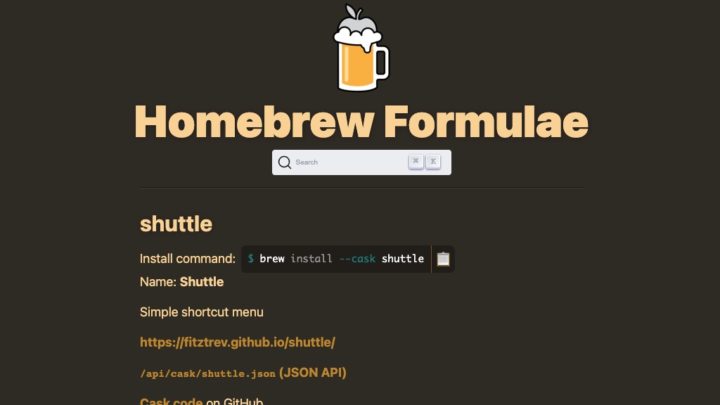
brew install --cask google-chromeHomebrew isn’t just for installing, though. It also keeps your existing software up to date with brew upgrade. If you suspect system problems, brew doctor can check things out. You can even visit Homebrew Formulae online to find the exact commands for thousands of tools.
People love Homebrew for a few clear reasons. It’s super simple to use. An active community keeps thousands of software packages ready to go. Plus, it works for everyone, from casual users to serious programmers. If you use a Mac, Homebrew is almost a must-have. Manually installing apps can be a real headache there. For Linux users, while systems like apt or dnf exist, Homebrew shines. It offers a consistent way to manage software across different Linux versions. It also often provides newer versions of software faster.
Getting Started with Homebrew
Ready to give it a try? Getting Homebrew on your system is quick. Open your terminal and paste this command, straight from the official website:
/bin/bash -c "$(curl -fsSL https://raw.githubusercontent.com/Homebrew/install/HEAD/install.sh)"Homebrew is much more than a simple utility. It acts like a bridge, connecting you to countless software options. It truly transforms your terminal into a powerful control center for all your programs.