
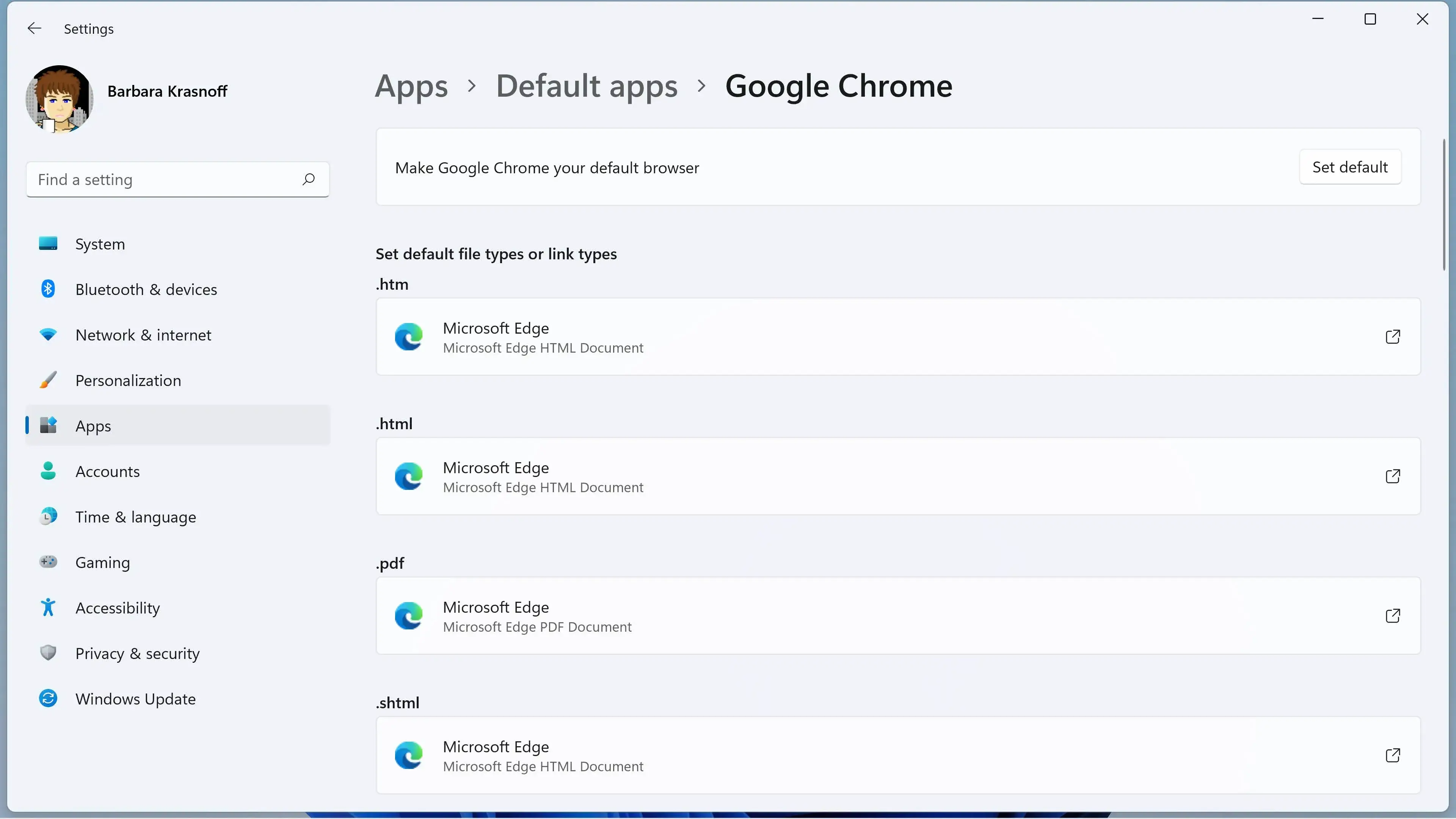
The fastest way to change your default browser in Windows 11 is through the Settings app. You can do this in four quick steps:
- Press the Windows key + I to open Settings.
- Click on Apps in the left sidebar, then select Default apps.
- Type the name of your preferred browser in the search box.
- Click the browser in the results, then click the Set default button at the top of the screen.
This changes the default for standard web links. Microsoft outlines this exact procedure for Windows 11 on its official support documentation.
Handling Individual File Types
Sometimes clicking “Set default” misses specific file types. PDFs or SVG files might still open in Edge. You can fix this on the same Settings screen.
Checking File Extensions
Scroll down the list of file extensions under your browser of choice. Look for .pdf, .htm, or .html. If you see Edge listed next to any of these, click the Edge icon. A menu pops up. Choose your preferred browser and click OK. You repeat this for any file type you want to open in your new browser.
Third-Party Browser Prompts
Most third-party browsers try to do this work for you. When you open a fresh install of a different browser, it asks to be the default. You click the confirmation button.
In older versions of Windows 11, this just dumped you into the Settings menu. Recent updates allow browsers to flip the switch directly from their own interface. If you install an alternative from the Mozilla Foundation website, it usually handles the Windows 11 default assignment with a single click during setup.
Verifying Your Changes
You want to be sure the change stuck. Close all your open windows. Press the Windows key + R to open the Run dialog. Type a standard web address and press Enter.
The site opens. Look at which browser opened it. If it is the one you selected, you did it right. If Edge still opens, you need to go back and check the HTTP and HTTPS associations in the Default apps menu.
Understanding Edge Updates
Microsoft frequently updates Windows 11. Sometimes these updates reset certain file associations back to Edge. This happens most often with PDF files or specific web links.
Check your settings after major system updates. If your links start opening in the wrong place, go right back to Settings > Apps > Default apps. The fix takes ten seconds.
Corporate and Managed Devices
Work computers act differently. If you use a machine provided by your employer, the IT department might block you from changing the default browser. They use Group Policy settings to lock this down.
Go to the Settings app and look at the Default apps page. If the options are grayed out or you see a message about your organization managing settings, you cannot change the browser yourself. You have to ask your IT support team to do it.
The Windows Search Bar Exception
Changing the default browser does not catch everything. If you type a web query directly into the Windows 11 taskbar search box, the results still open in Microsoft Edge. The same thing happens if you click a link inside the Windows Widgets panel.
Microsoft hardcodes these specific features to use Edge regardless of your system settings. Third-party tools exist to force these links into your preferred browser, but they often break when Windows updates. For most users, it is easier to just open the preferred browser first and do the search there.