
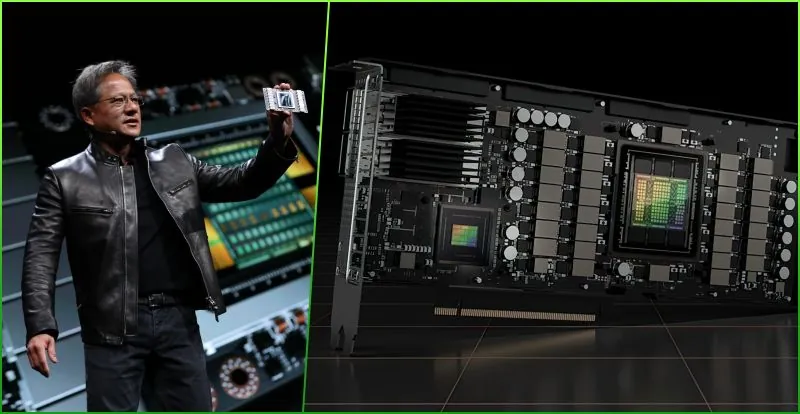
Hardware transcoding improves media server performance by shifting the intense computational math of video conversion away from your system’s primary processor (the CPU) and handing it to specialized circuits inside a Graphics Processing Unit (GPU). When a remote device requests a movie format it cannot natively play, the server must unencode the file, resize it, and re-encode it on the fly. Doing this with standard software transcoding forces the CPU to process the video frame by frame in a linear sequence. This exhausts system resources. Hardware transcoding uses dedicated, fixed-function silicon to process multiple video frames simultaneously. The server CPU drops to single-digit utilization, freeing it to handle background tasks and database requests without crashing.
Video files are not simply a series of static photographs stacked together. Modern codecs like H.264 and HEVC (H.265) rely on incredibly complex predictive math to save hard drive space. They only record the pixels that actually change from one frame to the next. If you watch a movie with a static background, the video file only contains data for the moving actors. Rebuilding that full picture during playback requires serious computational effort. When a server has to deconstruct that predictive math and rebuild it for a smaller screen in real-time, it performs advanced algebra millions of times per second.
Feature Comparison: CPU vs. GPU Transcoding
Software transcoding relies entirely on the Central Processing Unit. CPUs execute instructions one after another. They are highly versatile chips designed to run operating systems, execute code, and manage data arrays. They are highly inefficient for the hyper-specific task of video compression. A standard quad-core processor will routinely max out its capacity just trying to convert a single high-bitrate 4K video file. The server chokes on the math. Users see endless buffering wheels.
Hardware acceleration takes a completely different route. Modern graphics chips contain specialized encoders built explicitly for manipulating video. Intel processors feature integrated logic circuits called Quick Sync Video, while NVIDIA graphics cards use dedicated chips known as NVENC. These components handle the math using parallel processing, manipulating thousands of individual pixels simultaneously.
These are fixed-function chips. They are hardwired at the microscopic silicon level to do exactly one job: encode and decode video. They cannot run a database or calculate physics in a video game. They chew through video data exponentially faster than the most expensive general-purpose server CPUs on the market.
You trade a microscopic amount of visual data for this speed. CPU transcoding generally produces smaller file sizes and slightly sharper visual quality because it has the flexibility to take its time and optimize the compression algorithm. Hardware encoders prioritize raw speed over compression efficiency. You trade a theoretical loss in pixel fidelity for the ability to stream video in real-time without stalling the host machine. For anyone watching a movie on a television across the internet, the difference in quality is basically impossible to see.
The Step-by-Step Mechanics of Video Delivery
The logic tree dictates whether the server works hard or barely breaks a sweat. When you press play on a client device, the software executes a specific sequence of checks to determine how to deliver the video.
- The Handshake Protocol: The client app (your smart TV, phone, or web browser) tells the server what it can handle. It sends data detailing its screen resolution, supported audio formats, maximum supported codec level, and the current speed of its network connection.
- Direct Play Assessment: The server compares the requested media file against the client’s capabilities. If the file is a 1080p MP4 and the receiving television fully supports 1080p MP4 files over a fast local network, the server simply sends the file exactly as it sits on the hard drive. This requires almost zero processing power. It operates as a basic file transfer.
- The Compatibility Break: If the client asks for a 4K HEVC file but is watching on an older tablet that only supports H.264, compatibility breaks. The exact same thing happens if the user is on a slow cellular connection that cannot process a 30-megabit data stream. The server must intervene to make the video playable.
- Real-Time Conversion: The server triggers the transcoding engine. It decodes the original 4K file, compresses it into a smaller format, drops the bitrate, and sends the new stream out to the user. This conversion must happen slightly faster than the user is watching the video, or the stream will pause to buffer.
- Adaptive Adjustments: For live broadcasts or fluctuating connections, the server utilizes adaptive bitrate streaming. It constantly monitors the viewer’s internet speed and dynamically raises or lowers the video quality on the fly. If you drive through a tunnel while streaming a movie on your phone, the server instantly drops the resolution to keep the audio and video playing without interruption.
Common Issues and Fixes: Resolving Buffering and System Crashes
The most frequent complaint from home server owners is video stuttering. They attempt to watch a high-resolution movie remotely, and the stream constantly pauses. This happens because the default setting on most media software is software-based CPU transcoding.
When someone tries to push a dense 4K HEVC file through a basic Network Attached Storage (NAS) device, the processor cannot decode the information fast enough. The CPU utilization instantly jumps to 90 percent or higher. The system creates massive amounts of heat. The cooling fans spin up to maximum speed.
When a processor runs at maximum capacity for an extended period, the physical silicon gets dangerously hot. To prevent the chip from melting, the motherboard initiates thermal throttling. It artificially slows down the processor’s clock speed. This reduces the heat, but it also ruins the video conversion process. The server can no longer process the frames fast enough for real-time playback. The video stream collapses.
The entire system bogs down. Navigation menus freeze. If another user tries to access a completely different, easy-to-play file at the exact same time, their request times out because the CPU is too busy struggling with the 4K video math.
The fix requires enabling hardware acceleration in the server settings. When properly configured in software like Plex, the platform offloads this heavy lifting to the GPU. This eliminates the buffering bottlenecks and allows users to maintain high-quality playback, which includes retaining High Dynamic Range (HDR) color profiles during the downscaling process. Tone mapping HDR to standard dynamic range (SDR) is incredibly intensive, and doing it via hardware prevents washed-out, grey colors on older televisions.
By moving the video math to the graphics chip, you clear the runway for the CPU to do what it does best: manage the database. The interface remains snappy. You stabilize server interfaces for all other users browsing the library while someone else watches a movie.
Alternative Methods and Hardware Choices
Server builders must decide between integrated graphics and dedicated graphics cards. There is no universally correct answer. It depends entirely on how many people need to watch video at the exact same time.
Multi-stream concurrency is the primary advantage of dedicated hardware. A midrange desktop processor might struggle to handle a single 4K stream on its own. Add a GPU to the mix, and the server can suddenly juggle multiple high-resolution conversions simultaneously for different users scattered across the internet.
For the average home user, an Intel processor featuring an integrated GPU (iGPU) is the smartest route. These chips pack Intel Quick Sync Video directly onto the CPU die. They are incredibly potent and draw very little power when sitting idle. Media servers run 24 hours a day, seven days a week. Specialized hardware encoders process video efficiently, pulling significantly less power per stream. This reduces thermal output and leads directly to lower electricity bills over the life of the machine. An Intel Celeron processor with an integrated GPU will routinely out-perform a highly expensive AMD Ryzen CPU in a media server environment simply because the Celeron has dedicated video silicon.
Dedicated graphics cards offer a different scale of performance. Commercial streaming platforms and enterprise cloud environments rely on massive arrays of dedicated GPUs. These cards process dozens of concurrent frames, allowing server racks to achieve near real-time throughput for thousands of simultaneous viewers. You generally only need to install a standalone NVIDIA or AMD graphics card in a home server if you are routinely serving heavily compressed 4K files to a dozen remote users at the same time. The downside to dedicated cards is power consumption; a standalone GPU will draw significantly more wattage at idle than an integrated chip.
Hardware encoding only handles the video track. Audio transcoding is always processed by the CPU. Converting a 7.1 TrueHD surround sound audio track into a basic stereo AAC mix takes a fraction of the computational power required for video. CPUs handle audio conversion with ease.
Problems arise when a server attempts to burn image-based subtitles into the video stream while simultaneously converting the video and audio formats. Subtitle burning forces the server to redraw the text over every single frame of the video. Hardware encoders struggle with this process. If you force subtitle burning, many servers will automatically abandon the hardware encoder and fall back to software transcoding, instantly spiking the CPU usage.
Not all GPUs are created equal. An older NVIDIA graphics card from 2016 will not have the physical silicon required to decode modern HEVC files. Hardware encoders are hardwired; you cannot update them via a software download. If the physical chip does not support a specific codec, the server will fall back to CPU transcoding. Anyone building a media server must check the manufacturer’s encoding support matrix to ensure their hardware supports the specific file types in their library.