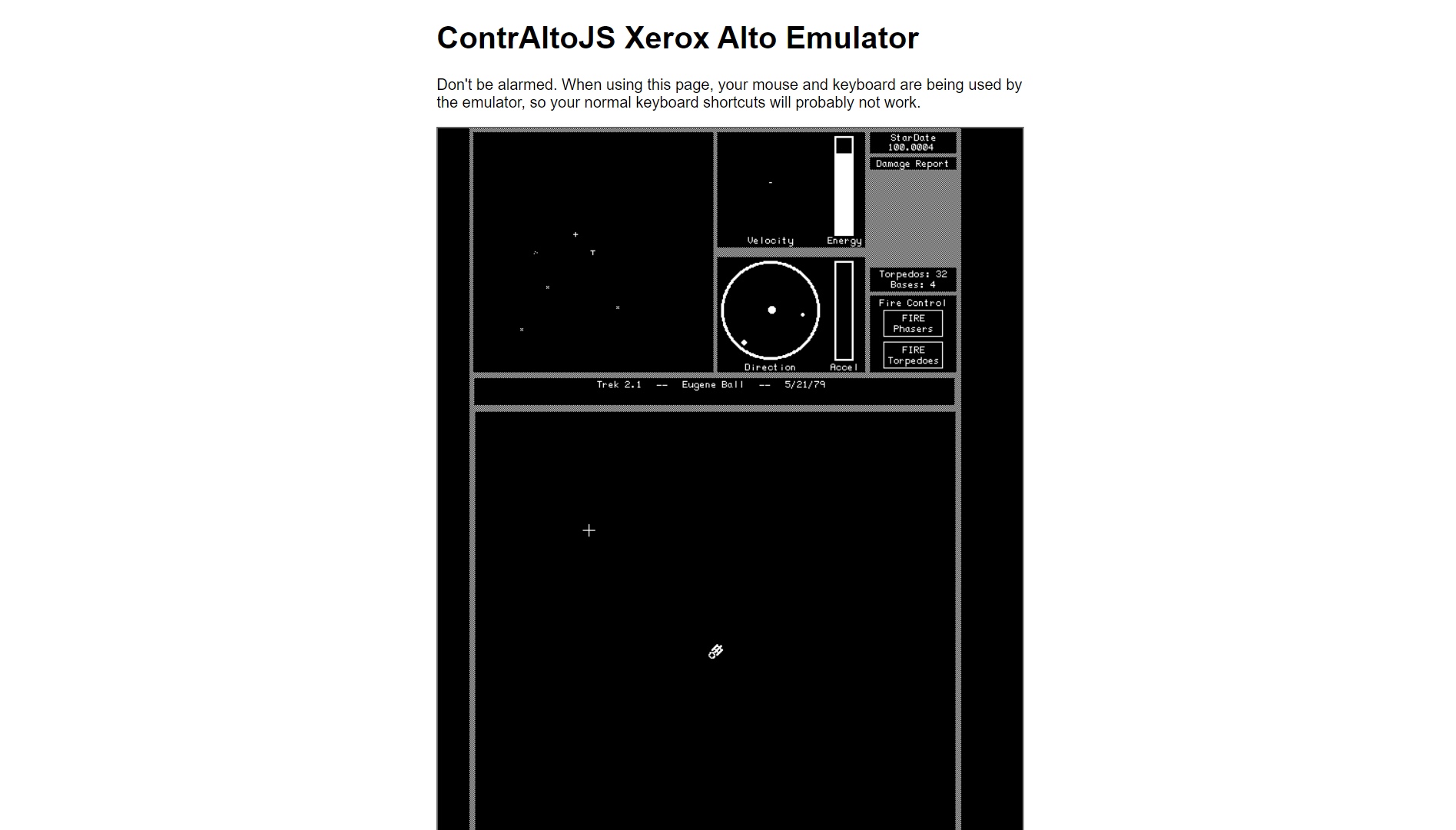
In 1973, Xerox introduced High, a research computer that laid the foundations for the modern PC using a bitmapped graphical interface, a mouse, and a local area network.
Now, thanks to an emulator, you can use an Alto computer in your browser.
This was the computer Alto
In 1973, engineers at the Xerox Research Center in Palo Alto (PARC) created a revolutionary computer called Xerox Alto.
This computer pioneered the use of mouse-based graphical user interface (GUI), bitmap graphics, LAN, laser printing, network computer games, object-oriented software development, and much more.
Alto’s bitmap display and vertical monitor have made it an ideal platform for document preparation, leading to the emergence of first word processors WYSIWYG (“What You See Is What You Get”) that supported multiple fonts.
It also housed the first drawing programs and font editors this would later revolutionize publishing.
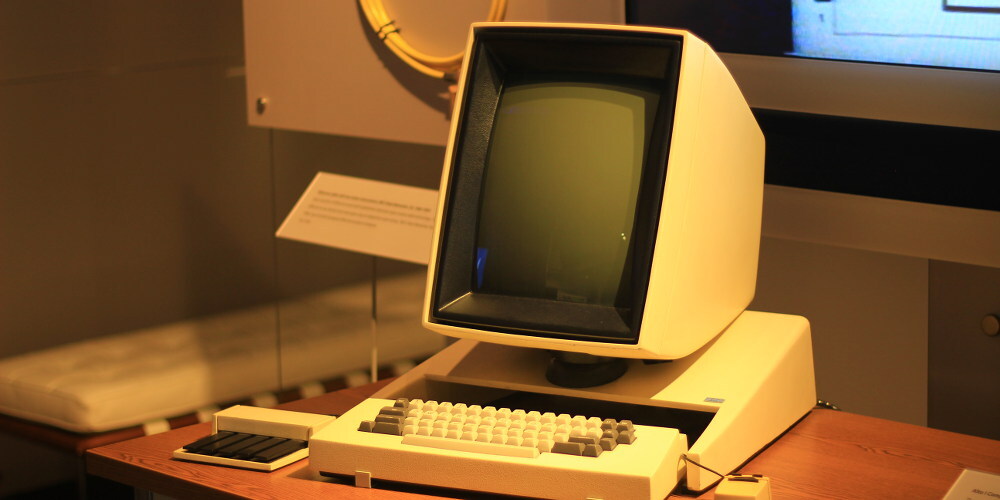
Thanks to Ethernet (also invented at PARC), a local group of Alto computers could share a laser printer, exchange files, share an ARPANET connection, or even play games with each other.
Steve Jobs visited Xerox PARC in 1979 and came away convinced that Xerox held the key to the future of personal computing. That inspiration led to the launch of the Apple Lisa in 1983 and the Macintosh the following year.
In less than a decade, Xerox produced more than 2,000 units of the Alto in two models (Alto I and Alto II), but the computer was never officially sold. In addition to Xerox’s internal use, it donated 50 units to universities across the United States in 1979.
Xerox Alto Technical Specifications
These are the basic specs of Alto.
- 606 × 808 pixels (black and white) monochrome display on a portrait full-page CRT monitor
- 16-bit custom CPU running at 5.8 MHz
- RAM memory: 128 to 512 KB
- Storage: 2.5 MB removable hard disk cartridges
- three button mouse
- Set of five keys
- Modular keyboard
How to test the computer Alto
Using just a web browser, you can try out the old Xerox Alto software without downloading any special software.
This is made possible by an emulator called ContrAltoJS created by the Living Computer Museum and ported to JavaScript by Washington programmer Seth Morabito.
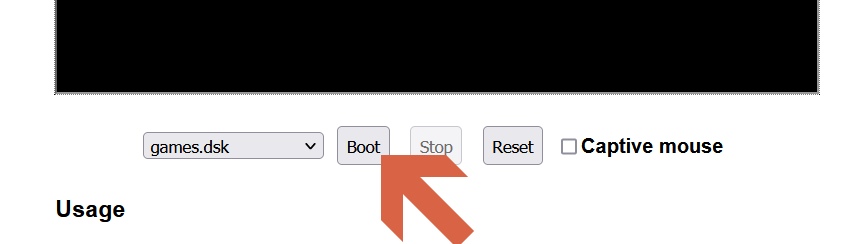
you just have to visit the ContraAltoJS website in any modern browser (like Chrome, Firefox, Safari or Edge). Below the large rectangle (representing the Alto’s virtual canvas), use the drop-down menu to select a disk image. This is equivalent to inserting a disk cartridge into a real Alto.
For example, choose “games.dsk” to load a disk full of games. When you’re ready to launch the emulator, click “Boot”.
When the emulator starts, place the mouse cursor over the emulator window to focus on mouse and keyboard input. You can type “…” to see a catalog of programs stored on the disk image, and usually just type the filename (and press Enter) to run it.
For example, to run Star Trek on the game disk, type “trek” and press Enter on the command line and the game will load. There are dozens of other games to try, some developed in the 1980s.