
It was just the other day, sitting at an outdoor cafe, when I spotted something curious. A couple was playing with their daughters. It wasn’t just any game, though. They were using a new, fun feature Apple tucked away in iOS 26 for Apple Pay. The kids, and even the grown-ups, were entertained for quite a while. Today’s tech often holds a special pull for the younger generation.
The game involved the girls with their little bags, pretending to go shopping. When it came time to "pay," since cash and coins are rarely used anymore, they pulled out a "phone." Specifically, their parents had activated the Apple Pay feature.
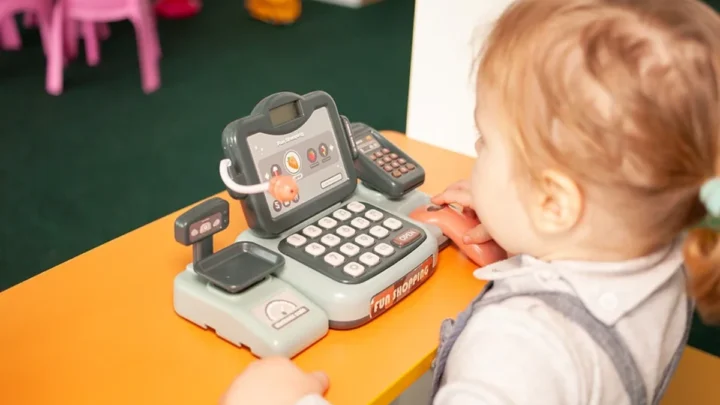
How Did the Kids Use This?
Kids love to play shopping, and making a payment is a part of that fun. You can pretend to use Apple Pay, but with the actual sounds and animations, it feels much more real. In iOS 26, Apple added a feature to the Wallet app’s settings. It lets you simulate Apple Pay just like a real transaction, but without any money changing hands.
iOS 26 includes a proper demonstration of this payment service. It looks and acts exactly like the real thing. You just use Face ID or Touch ID, bring the iPhone close to an imaginary terminal, and "bliep-bliep!" The payment is "made."
Of course, no actual money is charged. A pretend card shows up on the screen, not linked to any bank. No real payment terminal is needed either. Children find it entertaining, and it’s completely harmless. Kids must be at least 13 years old to use Apple Pay for real. This clever hidden function lets younger kids play almost as if it were real. If you have an old iPhone tucked away in a drawer, it could be a great toy for them.
Try Apple Pay (Even Without a Card)
The main reason for this Apple Pay demonstration is to help people learn how to use the payment service. Many users hold their iPhone incorrectly when they try to pay.
The right way is to put the back of your iPhone near the terminal, not the screen. This demo lets you practice that. If you use the screen side, the distance to the NFC chip is greater. This can make the transaction fail. Plus, you can’t see the screen to get the visual confirmation of your payment.
To find the Apple Pay demonstration in iOS 26:
- Go to Settings > Wallet & Apple Pay.
- Tap on Apple Pay Defaults.
- Scroll to the end. You’ll see an explanation about the Apple Pay demo. Tap Try Apple Pay demo.
- The Wallet app will open with a short explanation. Tap Try Apple Pay demo again.
- Now, use Apple Pay as you normally would.
- Double-press the side button, let Face ID or Touch ID recognize you, then bring your iPhone close. Be sure to turn on the sound to hear the unique Apple Pay chime.
It’s pretty simple, right? I don’t think this feature was made just to keep kids busy. It’s more for showing people how Apple Pay works, especially if they are new to it. Still, it’s a neat trick if you want to use it for other purposes, like a bit of innocent playtime.