
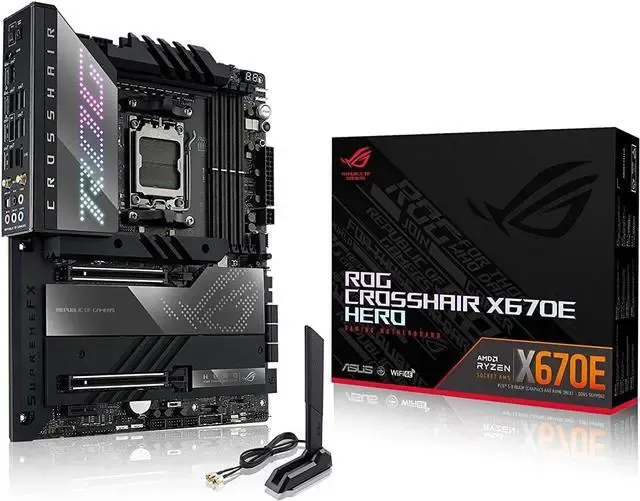
PCIe lane sharing is the exact physical process your computer uses to divide its data pathways between components like graphics cards and storage drives. You plug in a new NVMe SSD, and your motherboard automatically cuts the bandwidth to your graphics card in half to make room. This shifting of resources happens entirely behind the scenes.
Most PC builders never notice it occurring. It is a physical necessity because processors only have a set number of direct motherboard connections available. Every peripheral you attach needs to talk to the CPU. They do this over Peripheral Component Interconnect Express (PCIe) lanes.
Technical documentation from HP defines these connections as physical data highways wiring the expansion slots directly into the system architecture. Each lane consists of two pairs of wires physically printed on the motherboard PCB. One pair handles sending data. The other pair handles receiving data. This physical setup allows for simultaneous data transmission in both directions.
Slots on your motherboard come in standard physical sizes of x1, x4, x8, and x16. These numbers dictate the maximum amount of physical lanes wired into that specific slot. Physical size does not always match electrical wiring. A slot might be big enough to physically hold an x16 graphics card, but the motherboard manufacturer may only wire it for x8 or x4 electrical speeds to save manufacturing costs or route those lanes elsewhere.
Feature Comparison: PCIe Generation Bandwidth
The total speed you get depends on the generation of the PCIe lane. Manufacturers double the bandwidth threshold with every new generation release. This means a newer connection needs fewer lanes to hit the exact same speeds.
- PCIe 4.0: Delivers up to 1.97 GB/s of bandwidth per physical lane.
- PCIe 5.0: Delivers up to 3.94 GB/s of bandwidth per physical lane.
A modern PCIe 5.0 x8 connection gives you roughly the same total bandwidth (about 32 GB/s) as an older PCIe 4.0 x16 connection. Hardware gets faster, so the newer generations take pressure off the physical lane limits. Your system pushes more data across a narrower physical pathway.
Consumer desktop CPUs operate under a strict lane budget. Processors are physically limited by the number of pins they can connect to the motherboard socket. Adding more lanes requires bigger CPU sockets and much more expensive motherboard layouts.
Most standard consumer desktop processors provide around 24 to 32 total direct PCIe lanes. A standard PC setup uses 20 of those lanes immediately upon boot. Your primary graphics card slot takes 16 lanes. Your primary NVMe SSD takes another 4 lanes. That leaves very few direct CPU connections for any other add-in cards.
Common Issues and Fixes: The Bifurcation Problem
When you exceed your processor’s total lane limit, the motherboard engages a process called bifurcation. It splits the existing lanes to fit the new hardware. The system looks at the available connections and automatically divides them based on factory-programmed rules.
According to a technical breakdown by hardware analysts at How-To Geek, adding a secondary M.2 SSD often triggers an immediate reduction in your GPU lane allocation. The motherboard pulls lanes away from the top x16 slot, dropping the graphics card down to x8 mode. It routes those newly freed lanes straight to the storage drive.
This causes a problem known in the PC building community as “silent throttling.” A user installs a new drive to expand their storage capacity. They boot up their computer completely unaware that the system automatically slashed their graphics card connection in half. The motherboard does not display a warning message or alert on the screen. The user only discovers it if they run diagnostic software to check their hardware status.
You can check if your system is doing this using diagnostic software like GPU-Z. The program shows you exactly how many lanes your graphics card is currently using. You look at the “Bus Interface” box. It will read something like “PCIe x16 4.0 @ x8 4.0” if the motherboard cut the lanes. The first number shows the physical capability of the card. The second number shows the actual electrical connection the motherboard allows at that exact moment.
But does dropping to x8 speed actually bottleneck a graphics card? The answer depends entirely on your monitor resolution.
According to benchmark tracking by data engineers at MoboMaps, dropping a GPU to x8 mode at 1080p resolution reduces performance by up to 4%. When you increase the resolution to 1440p, the performance impact shrinks to 1 or 2%. At 4K resolution, the difference drops to roughly 1%.
This difference happens because the GPU itself becomes the main bottleneck at 4K. The graphics card works incredibly hard to render high-resolution frames, so it physically cannot push as much data back and forth across the PCIe lanes every second. At 1080p, the GPU renders frames so fast that the physical lane bandwidth becomes a slight hurdle. The card tries to send more frames than the bus can quickly handle.
To fix silent throttling, users have to look at the block diagrams printed in the back of their motherboard manuals. These diagrams show exactly how the lanes are physically wired. If an M.2 slot routes directly to the CPU and shares a line with the top PCIe slot, it will cause bifurcation. You fix this by physically unscrewing the M.2 drive and moving it to a lower slot on the board that connects to the chipset.
Alternative Methods or Tools: Using the Chipset and HEDT Platforms
The motherboard chipset acts as a secondary traffic controller for slower devices. Think of things like your Wi-Fi card, SATA hard drives, and extra M.2 slots. These components connect directly to the chipset. The chipset bundles all their data requests together and sends them over a single physical uplink back to the CPU.
Intel usually uses an 8-lane DMI link for this specific connection. AMD uses a 4-lane link. This works perfectly for low-bandwidth devices. It only becomes a problem if you plug too many high-speed NVMe SSDs into the chipset slots and try to read from all of them at the exact same time. The motherboard will artificially throttle the read speeds of the drives to prevent the single uplink from crashing.
Motherboard manufacturers outline these exact sharing rules in their user manuals. System architects designed several MSI X870 boards so that the rear USB4 ports and the secondary M.2 slot (M2_2) share the exact same PCIe 5.0 x4 allocation from the CPU. Populating the second full-size PCIe slot (PCI_E2) on these boards routinely forces the top GPU slot (PCI_E1) to drop from x16 down to x8.
Consumer boards like the ASRock PG X870 Nova Wi-Fi show these compromises clearly. The engineers managed to fit five M.2 slots onto that standard board. But to keep the system running, three of those storage slots have to share bandwidth with other components. If you install drives in them, the motherboard will completely disable or heavily throttle your SATA ports, USB4 connections, or other PCIe slots.
High-End Desktop (HEDT) platforms use a different physical method entirely. They solve the lane shortage by brute-forcing the volume of connections. They use much larger CPU sockets and add more complex PCB layers to the boards.
AMD’s Threadripper 7000 CPUs give users up to 80 PCIe Gen 5 lanes straight from the processor itself. The accompanying TRX50 chipset adds another 36 lanes on top of that. This volume of physical connections allows professionals to run multiple graphics cards and storage drives simultaneously without any lane sharing compromises. Professionals pay thousands of dollars extra for these specific platforms just to get the extra lanes.
Frequently Asked Questions
Does adding a second M.2 SSD slow down my GPU?
It depends entirely on where you install the drive. If you put a second M.2 SSD into a slot wired to share lanes with the CPU, the motherboard will automatically reduce your graphics card from an x16 connection to an x8 connection. You can find this information printed in your motherboard manual. Installing the drive in a lower slot wired directly to the motherboard’s chipset usually prevents this drop.
What is the difference between PCIe 4.0 and PCIe 5.0 lanes?
Bandwidth is the main difference. PCIe 5.0 doubles the data transfer rate of PCIe 4.0. A single PCIe 4.0 lane processes up to 1.97 GB/s. A single PCIe 5.0 lane processes up to 3.94 GB/s. Both standards are forward and backward compatible with older and newer hardware, meaning a Gen 4 card works in a Gen 5 slot and vice versa.
What happens if I put a PCIe x16 card in an x8 slot?
The card will function normally as long as the slot has an open back or is physically sized as an x16 slot. Even if the slot is physically large, the motherboard may only wire it electrically for x8 speeds. Your card will simply run with its maximum potential bandwidth halved to match the physical x8 connection limit of the slot.