
Windows updates are often a good way to keep your computer safe and up-to-date, but they can also become a nuisance when they cause problems.
When it happens, it’s worth knowing how to uninstall an update, and in this article we’ll walk you through that process.
The steps are identical on Windows 10 and Windows 11, so we’ll do that on Windows 10. If you’re already on Windows 11, you can follow the same steps to get the same results.
How to Uninstall a Windows 10 or Windows 11 Update
Step 1. Access Windows Update through Windows Search or the Settings app
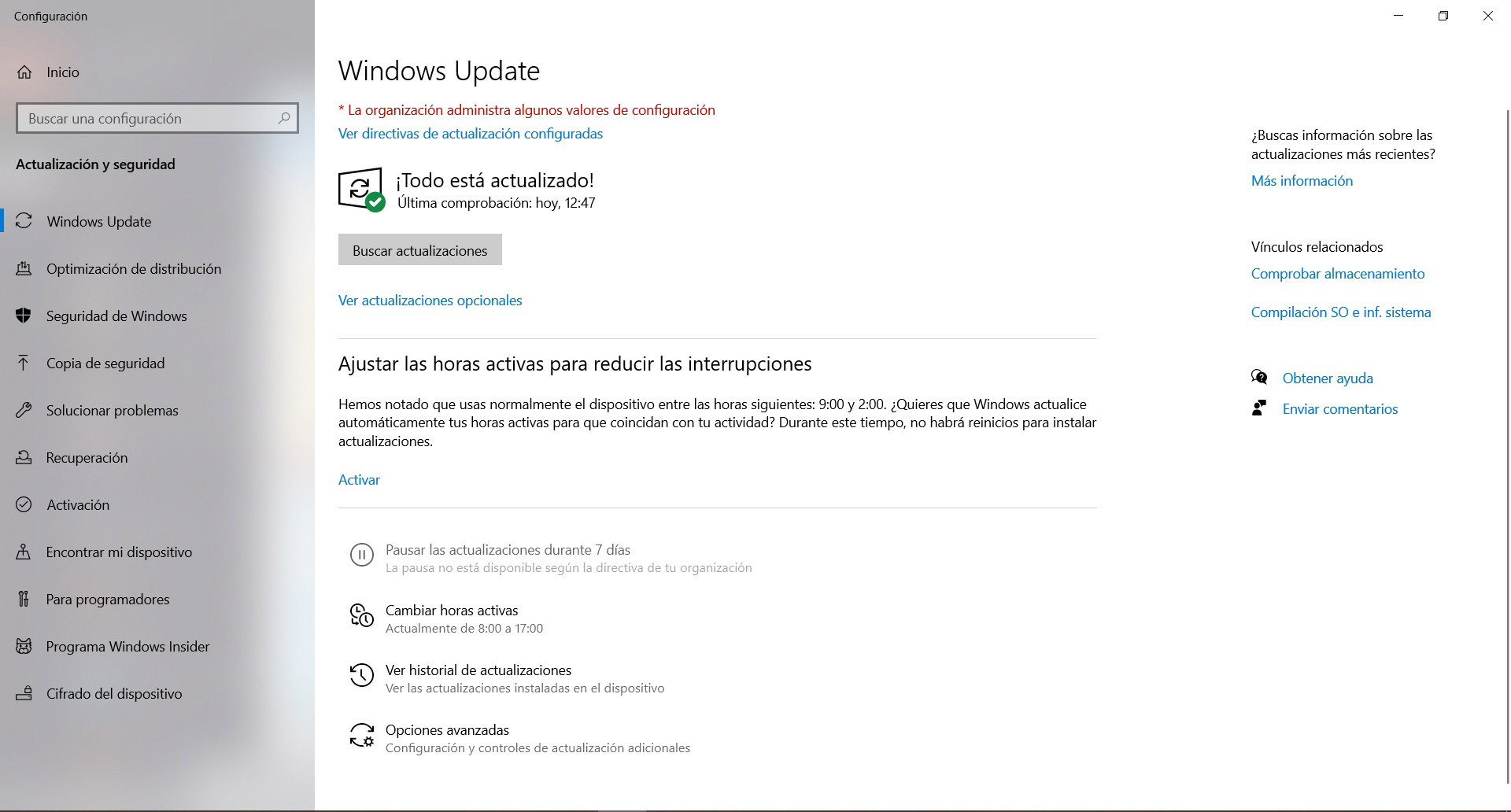
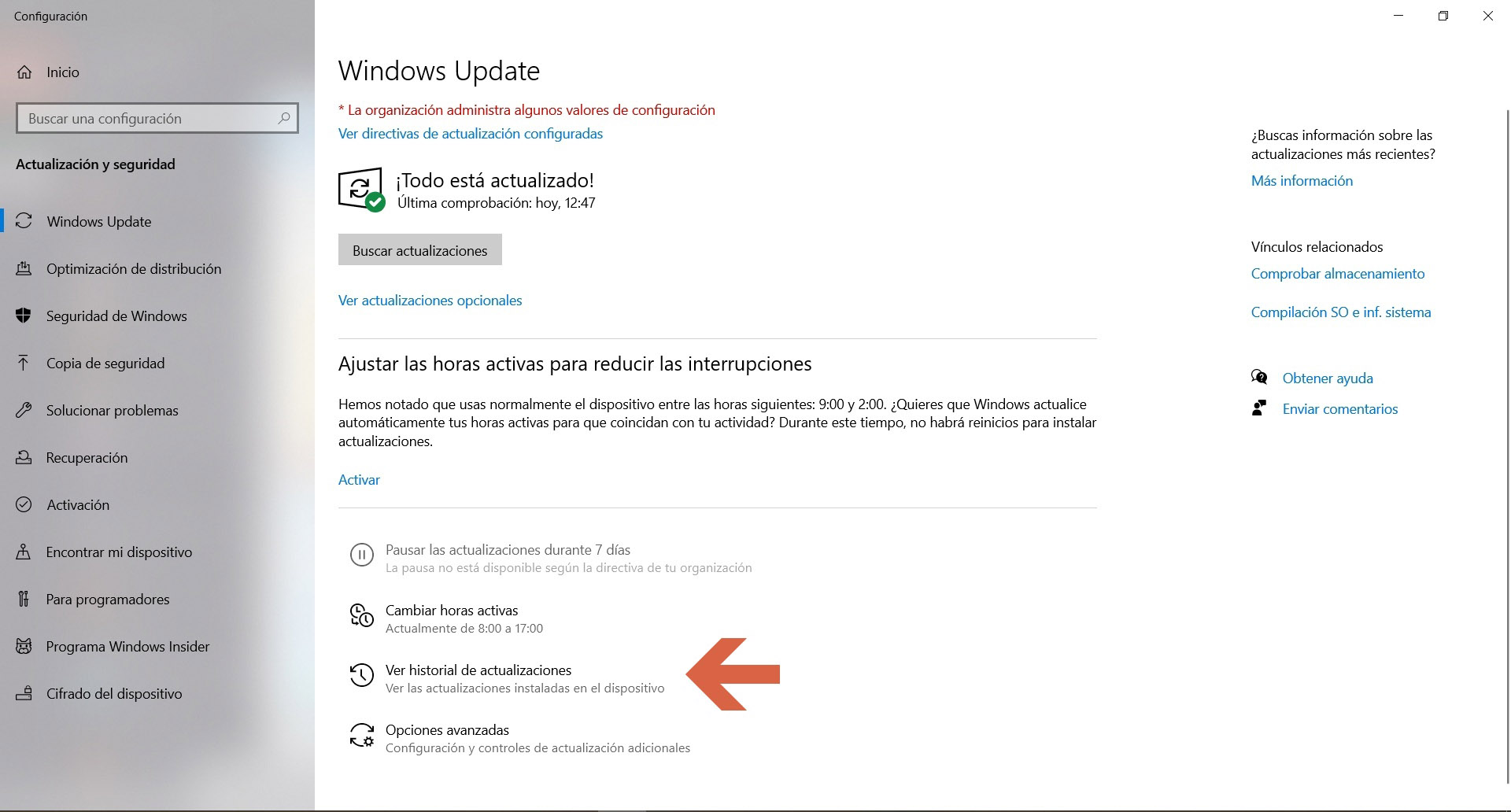
Step 2. Click Update History, which will show a history of updates installed on your system. You can click on each update for more information.
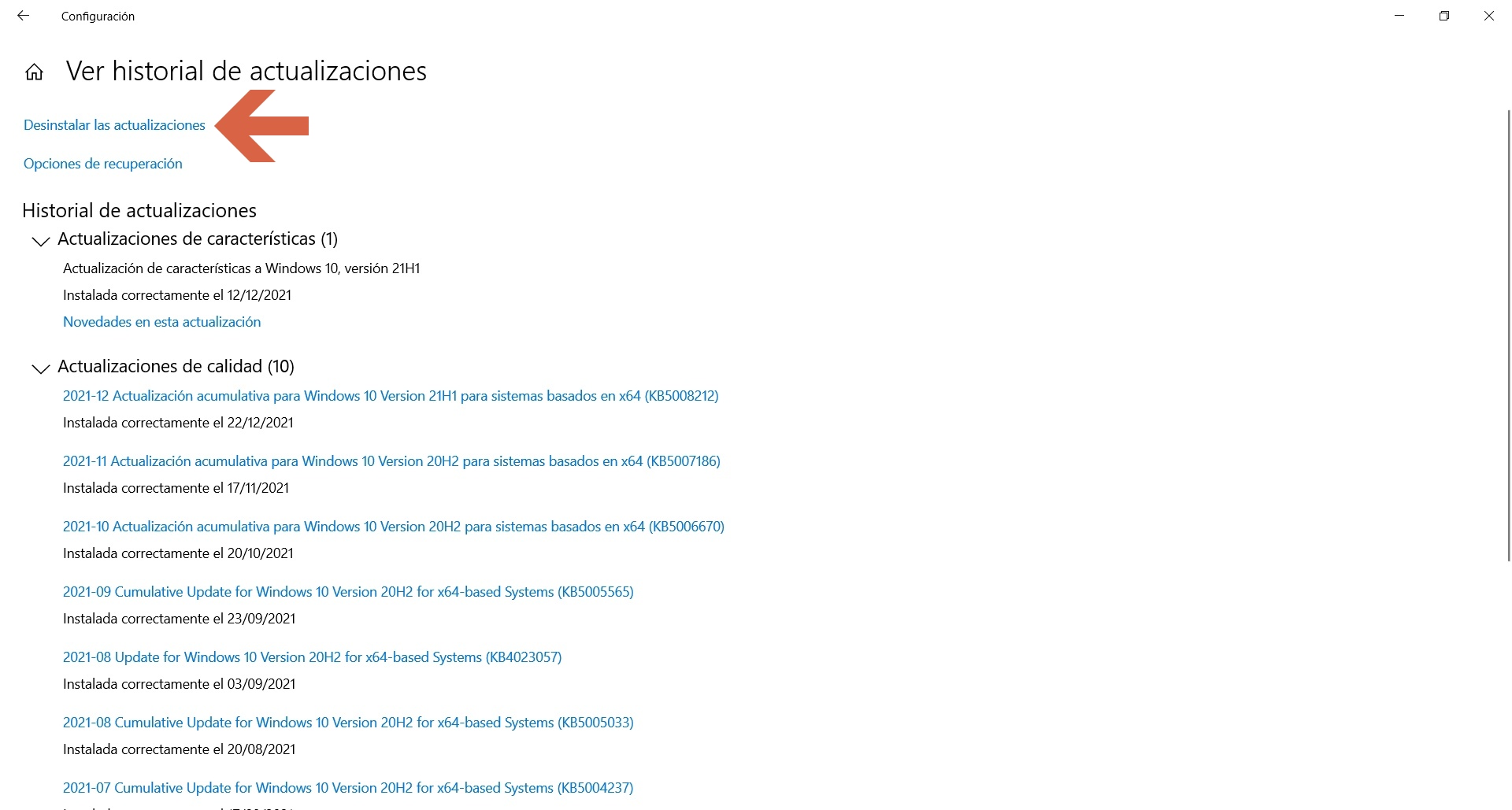
Step 3. Click on the Uninstall updates option.
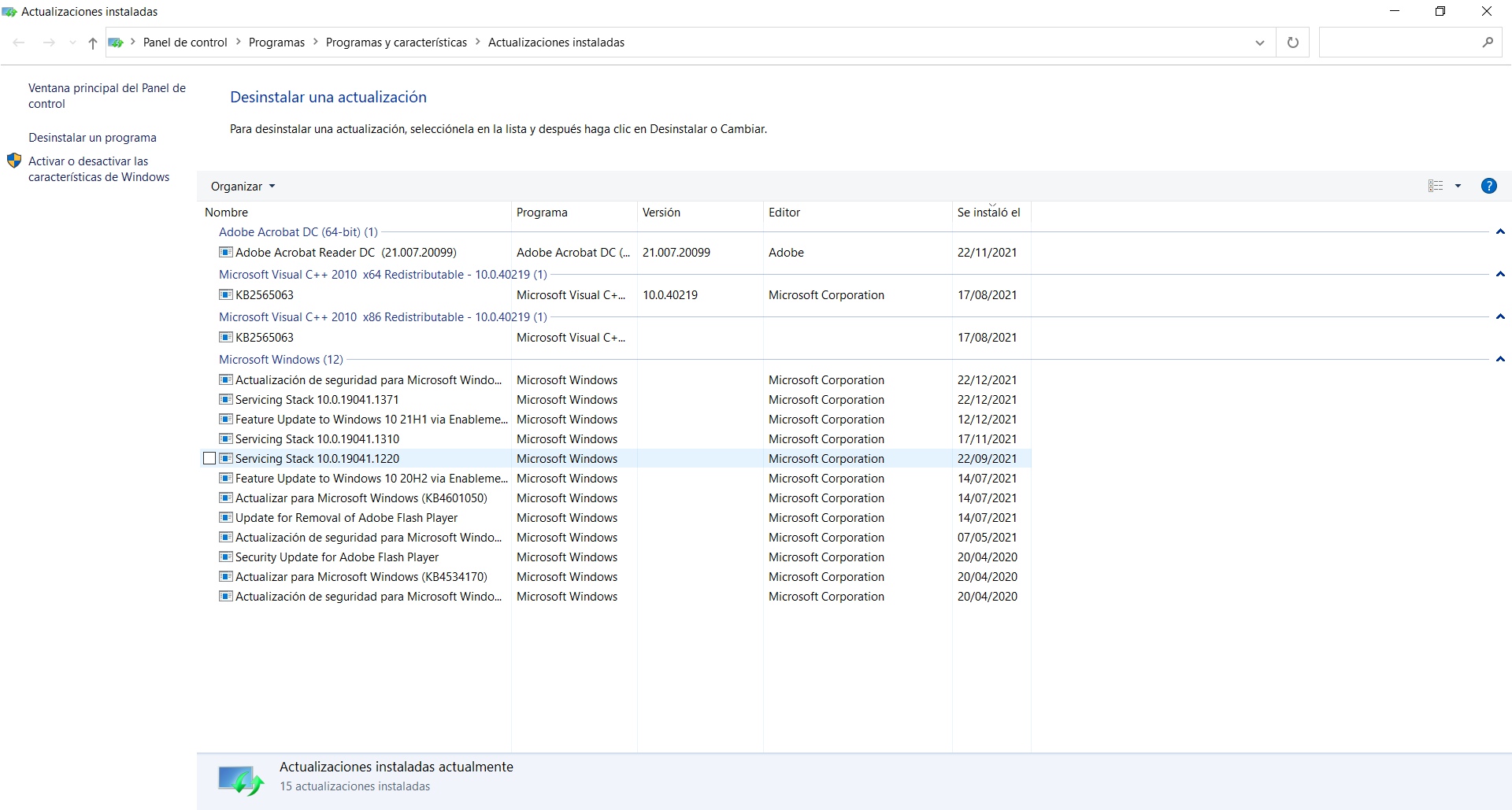
Step 4. This will open the Control Panel, which will show you a list of all updates currently installed on your machine. Double-click any update that you found to be problematic and a dialog box will appear asking if you want to uninstall the update. Click ‘Yes’.
Step 5. While the update is uninstalled, a progress bar will be displayed for a few minutes, wait for it to complete and then you will be prompted to restart your PC to complete the uninstall process.
Later, if you think you’ve made a mistake or still need the update, you can simply click Check for updates on Windows Update again. If it’s still offered for your setup, you can install it normally.